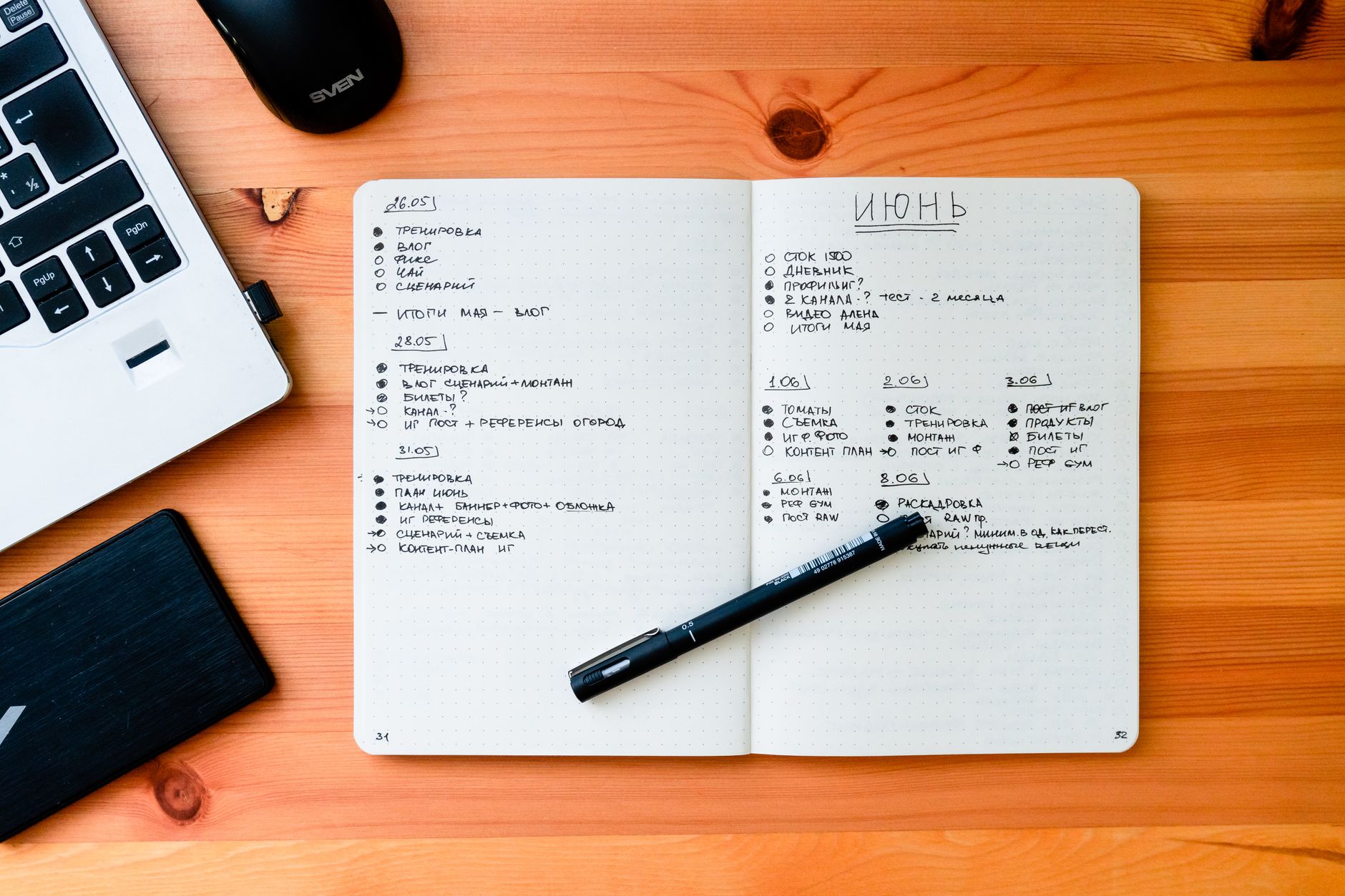
How to use GTD for multiple jobs: the ultimate guide to managing clients, projects, and tasks without losing control
Learn how to use GTD for multiple jobs or clients in one app, with concrete examples and optimized workflows to avoid stress and overlaps.
If you manage multiple jobs, clients, or projects at once, you know how easy it is for tasks to overlap, deadlines to blur, and productivity to suffer. David Allen’s GTD (Getting Things Done) method is one of the most effective systems for organizing work, but implementing it with multiple sources of tasks requires adjustments. In this guide, we’ll explain how to use GTD for multiple jobs in a practical way, with concrete examples and optimized workflows that prevent overwhelm and keep you focused on what matters.
Why GTD is ideal for managing multiple jobs (and what sets it apart)
GTD isn’t just a to-do list: it’s a complete system that externalizes what’s in your head, classifies actions by context and priority, and lets you make quick decisions without overloading yourself. When working with multiple clients or projects, these GTD principles make all the difference:
- Capture everything in one place: avoid losing tasks in emails, scattered notes, or messages.
- Clarify each task: define what it is (concrete action), which project it belongs to, and what the next step is.
- Organize by contexts: group tasks based on where or how you can do them (e.g., "at the office," "with Client X," "on mobile").
- Review weekly: adjust priorities and ensure nothing falls through the cracks.
- Do without thinking: execute tasks based on your current context, energy, and available time, not endless lists.
The key to applying GTD with multiple jobs is adapting these principles to a workflow that lets you separate responsibilities without losing the big picture. For example, if you’re a freelancer with three clients, you can’t treat all tasks equally: you need a system that shows you what’s urgent for Client A, what depends on a response from Client B, and what you can postpone for Client C without consequences.
Step-by-step: how to use GTD for multiple jobs with real examples
1. Capture: collect everything in one place (no exceptions)
The first step in GTD is emptying your mind and capturing all tasks, ideas, or commitments in an external system. When managing multiple jobs, this is critical: if you leave something in your head, it will mix with everything else and create stress. Practical example:
- You receive an email from Client A asking for a report by Friday. Capture it as a task: "Draft quarterly report for Client A (due Friday)."
- Client B messages you on WhatsApp to reschedule a meeting. Capture: "Reschedule meeting with Client B (confirm new date)."
- While working on Client C’s project, you think of an improvement. Capture: "Propose payment module optimization to Client C."
The rule is clear: if it requires action, write it down. Use tools that let you capture quickly, like voice dictation or keyboard shortcuts, to avoid wasting time.
2. Clarify: define what each task is and which job it belongs to
Once captured, the next step is clarifying each item. For each task, ask yourself:
- Is it actionable? If not, archive or delete it.
- What’s the next concrete action? Example: "Call Client B to confirm date" instead of "Meeting with Client B."
- Which project or job does it belong to? Assign a clear identifier (e.g., "Client A," "Project X").
- Does it require more than one step? If so, turn it into a GTD project (e.g., "Prepare launch for Client C" with subtasks like "Design banners," "Write emails").
Example with multiple jobs: if you have a task like "Prepare proposal for Client D," clarify it like this:
- Next action: "Review Client D’s brief and define scope."
- Project: "Commercial proposal for Client D."
- Context: "At the office (need access to files)."
- Priority: "Urgent (deadline: 3 days)."
3. Organize: structure your tasks by jobs and contexts
This is where GTD shines for multiple jobs. Instead of mixing everything into one giant list, organize tasks into categories that help you filter and focus. These are the key structures:
- By job or client: group all tasks related to the same project or client. Example: a board or list for "Client A," another for "Client B," etc.
- By context: define tags or sections based on where or how you can do the task. Examples: "@calls," "@computer," "@home," "@waiting for response."
- By priority: use tags like "Urgent," "Important," or "Low priority" to identify what needs immediate attention.
- By deadline: group tasks into "Today," "This week," "No date," or by due dates.
Practical example: if you work in design for three clients, your organization might look like this:
- Job: "Client A (web design)"
- Tasks: "Review wireframes (urgent)," "Send color palette (important)," "Waiting for feedback on logo."
- Job: "Client B (social media)"
- Tasks: "Schedule posts for this week (@computer)," "Reply to comments (@mobile)."
4. Review: adjust priorities and avoid overlaps
The weekly review is the heart of GTD, especially with multiple jobs. Spend 30-60 minutes to:
- Review all pending tasks and update their status (e.g., mark as "done," postpone, or delete).
- Check deadlines and priorities: are there tasks for Client A that are now more urgent than those for Client B?
- Identify bottlenecks: are there tasks blocked by missing information or a client’s response?
- Plan the next week: assign time blocks to each job based on priority.
Example: if during your review you see that Client C has a tight deadline for a report, but Client A just asked for an urgent change, decide what to prioritize based on consequences (e.g., "Client A pays more and the change is quick, do it today; start Client C’s report tomorrow").
5. Do: execute based on context, energy, and time
The last step is the simplest if the previous ones are done well. When it’s time to work, filter your tasks by:
- Context: are you on mobile? Do tasks tagged as "@mobile." At the office? Focus on "@computer."
- Energy: if it’s early and you’re fresh, choose complex tasks; if it’s late, opt for mechanical ones.
- Available time: if you only have 20 minutes, look for quick tasks (e.g., "Send email to Client B").
Example: imagine you have 3 free hours today and these are your pending tasks:
- Client A: "Draft report (2h, @computer)."
- Client B: "Call to confirm meeting (10 min, @calls)."
- Client C: "Review design (30 min, @computer)."
Your workflow could be: 1) Call Client B (quick and urgent task), 2) Draft Client A’s report (long and priority task), 3) Review Client C’s design if time allows. This way, you optimize your energy and deadlines.
Common mistakes when using GTD for multiple jobs (and how to avoid them)
- Mixing tasks from different jobs in one list: use clear separators (by client, project, or area).
- Not assigning contexts: if you don’t tag tasks by how or where to do them, you’ll waste time deciding what to do next.
- Skipping the weekly review: without it, deadlines overlap and priorities become outdated.
- Not defining the next action: tasks like "Work on Project X" are too vague; specify what you’ll do (e.g., "Write report introduction").
- Overloading one day: distribute tasks from multiple jobs across the week to avoid burnout.
How to apply GTD for multiple jobs with Foco
Implementing GTD for multiple jobs requires a tool that lets you separate responsibilities without losing the big picture. Foco is designed for this: each job (client, project, or area) is an independent container with its own color, making it easy to identify at a glance which task belongs to which job. For example, you can create a job called "Client A" with blue tasks, another "Client B" in green, and so on.
In Panorama mode, you see all tasks from all jobs at once, each with its container’s color, helping you spot overlaps or priorities. If you need to focus on one job, Foco mode filters the board to show only tasks for that client or project. The List, Kanban, and Calendar views let you organize tasks according to the GTD method: by deadline (List), status (Kanban), or date (Calendar).
To capture tasks quickly, use the voice dictation feature: say "Draft report for Client A, urgent, due Friday," and Foco will create the task with the date, priority, and reminder already set. If you have multiple pending tasks, the Burst feature lets you dictate them in a row, and Foco will separate them into individual tasks for you to review before saving them all at once. This makes applying GTD for multiple jobs faster and less error-prone.
Try Foco
Every task from every job in one place. Free to start.